CielChan Plus: Offline Anime Desktop AI Companion
A downloadable game for Windows
CielChan Plus
A companion who becomes part of your day.
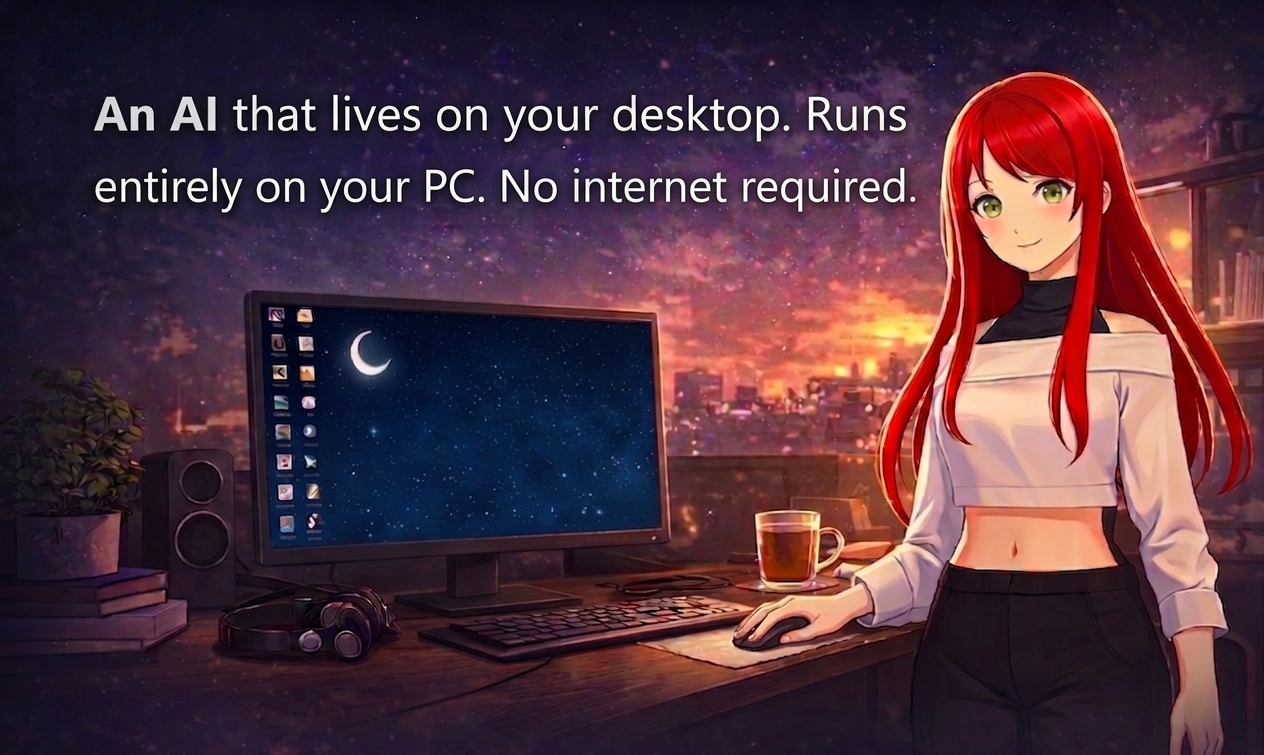
A local-first AI companion who stays on your desktop while you work, play, watch, read, or simply want someone nearby.
Talk to CielChan whenever you feel like it, or let her keep you company in the background. With the features you choose to enable, she can notice parts of what you're doing, react in her own time, remember selected details from conversations, and help with everyday tasks.
Offline core · One-time purchase · No subscription required
Looking for a starting point? Try CielChan Free →
More than a conversation.
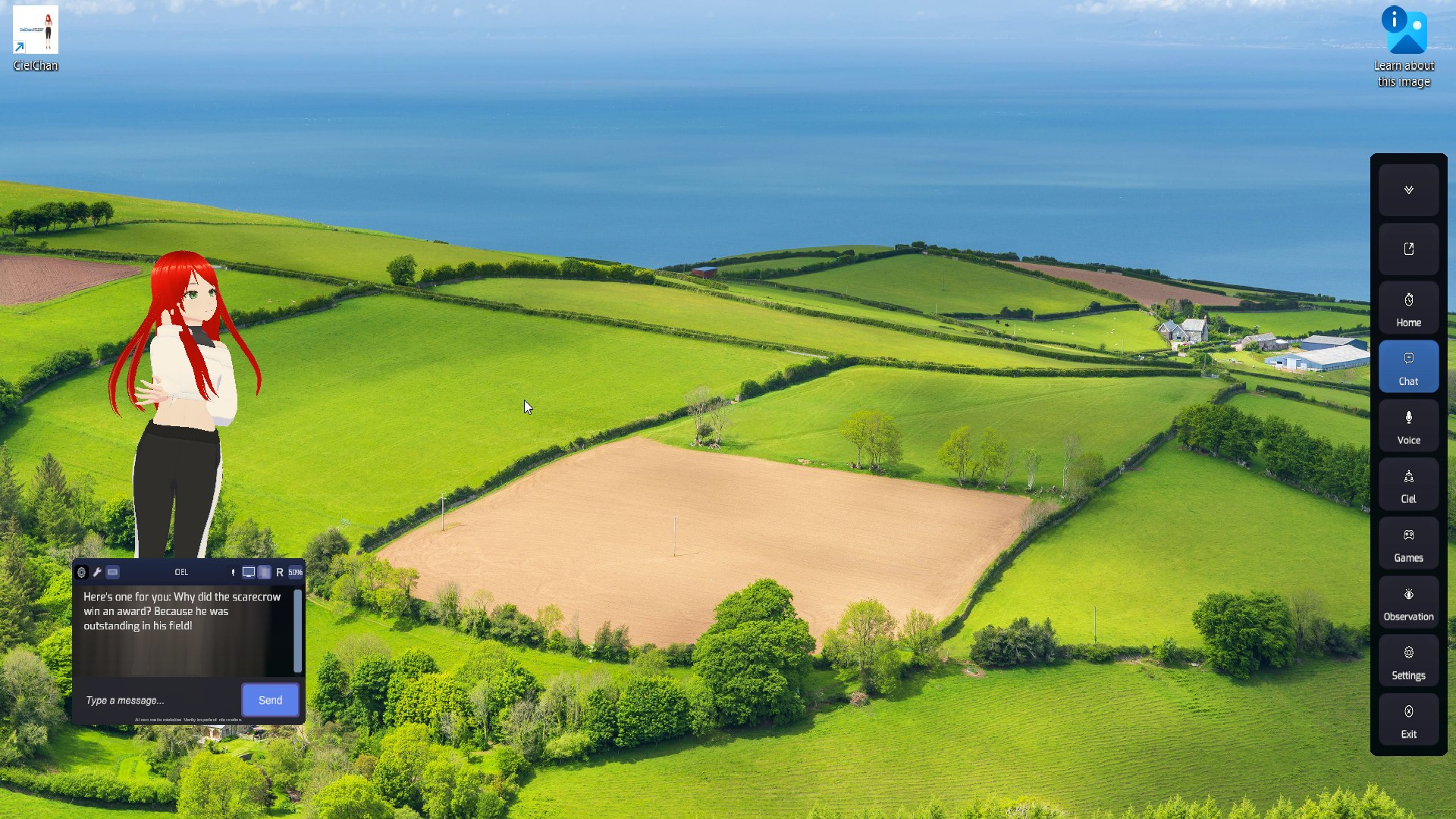
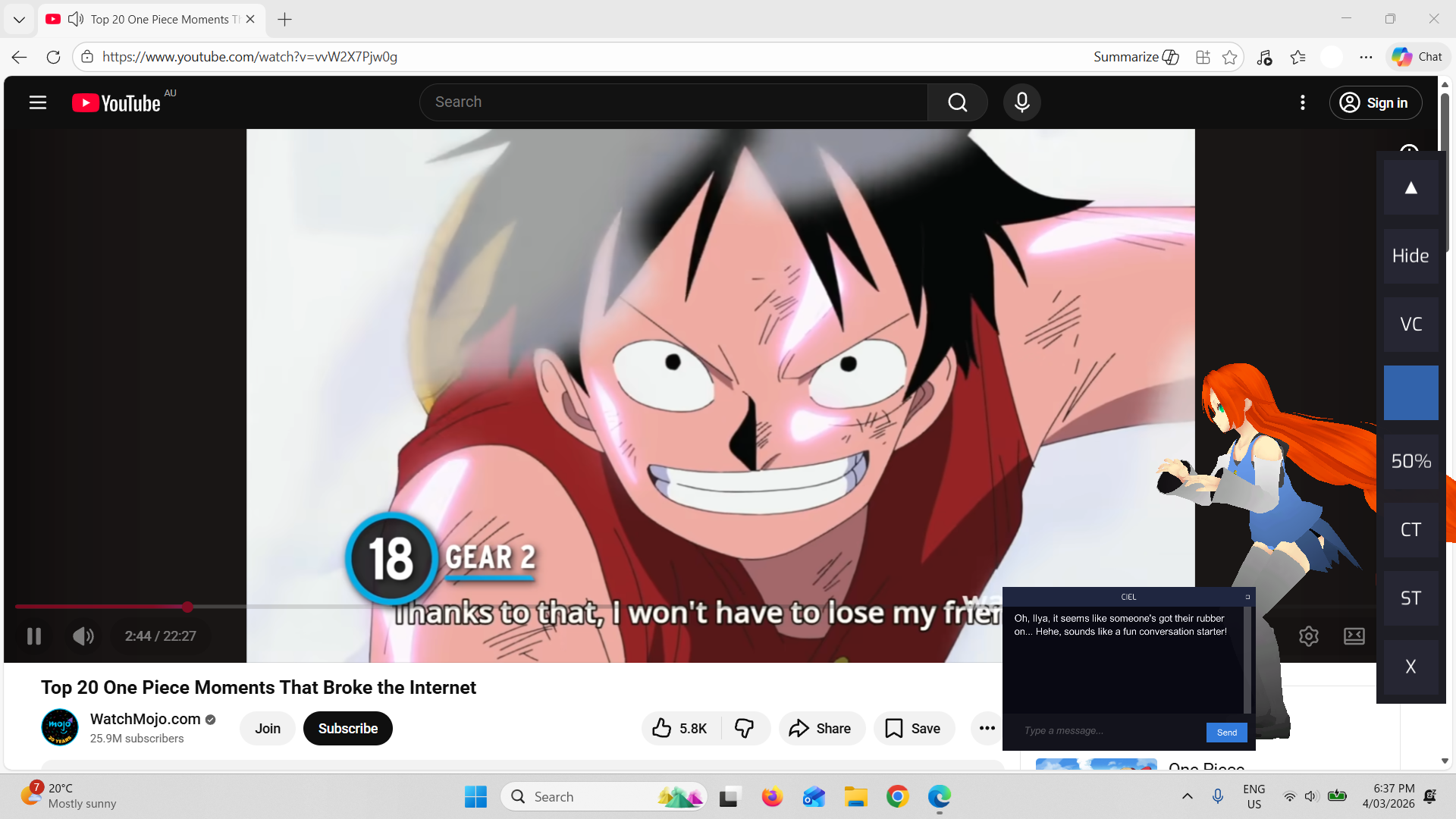
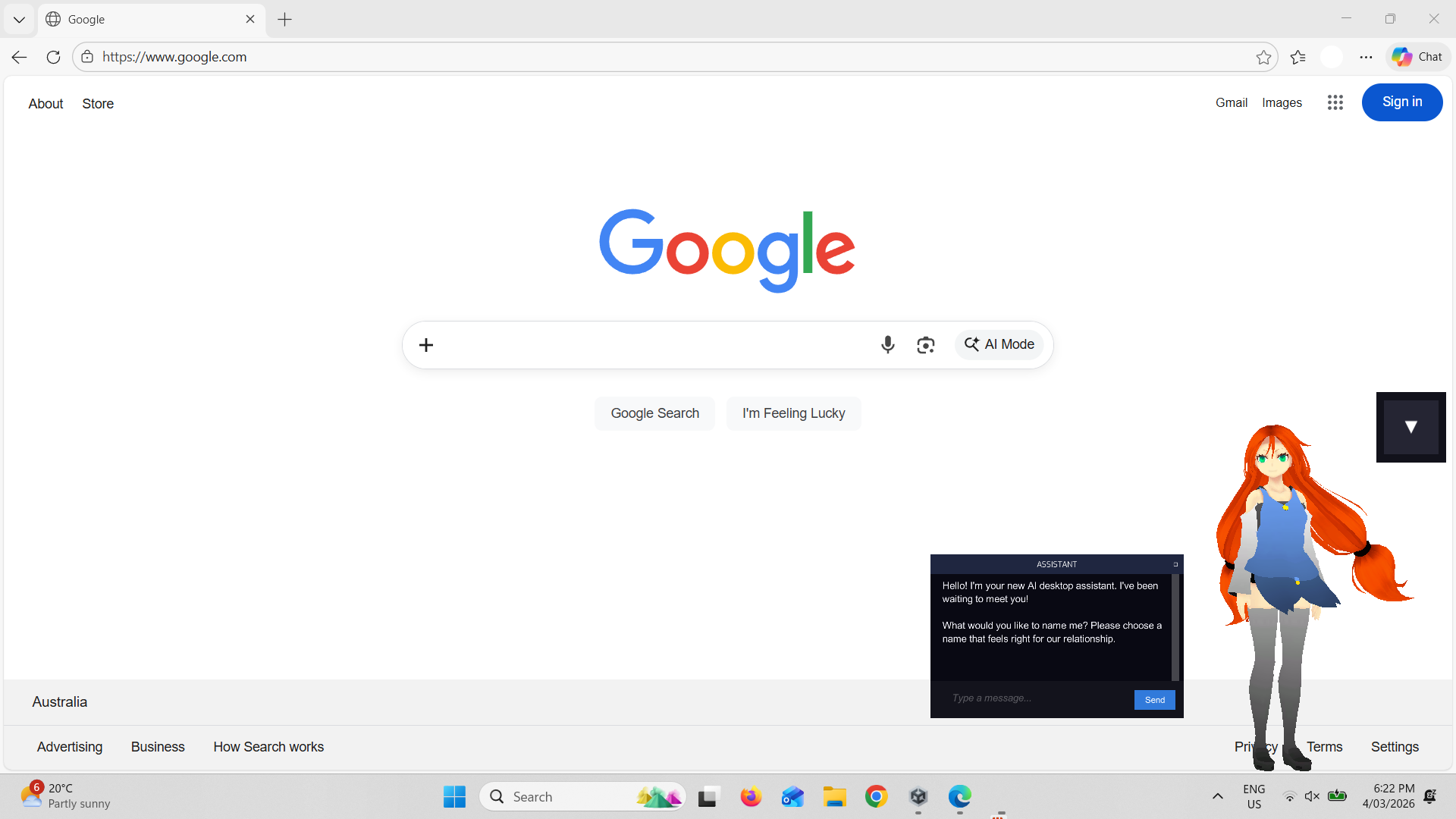
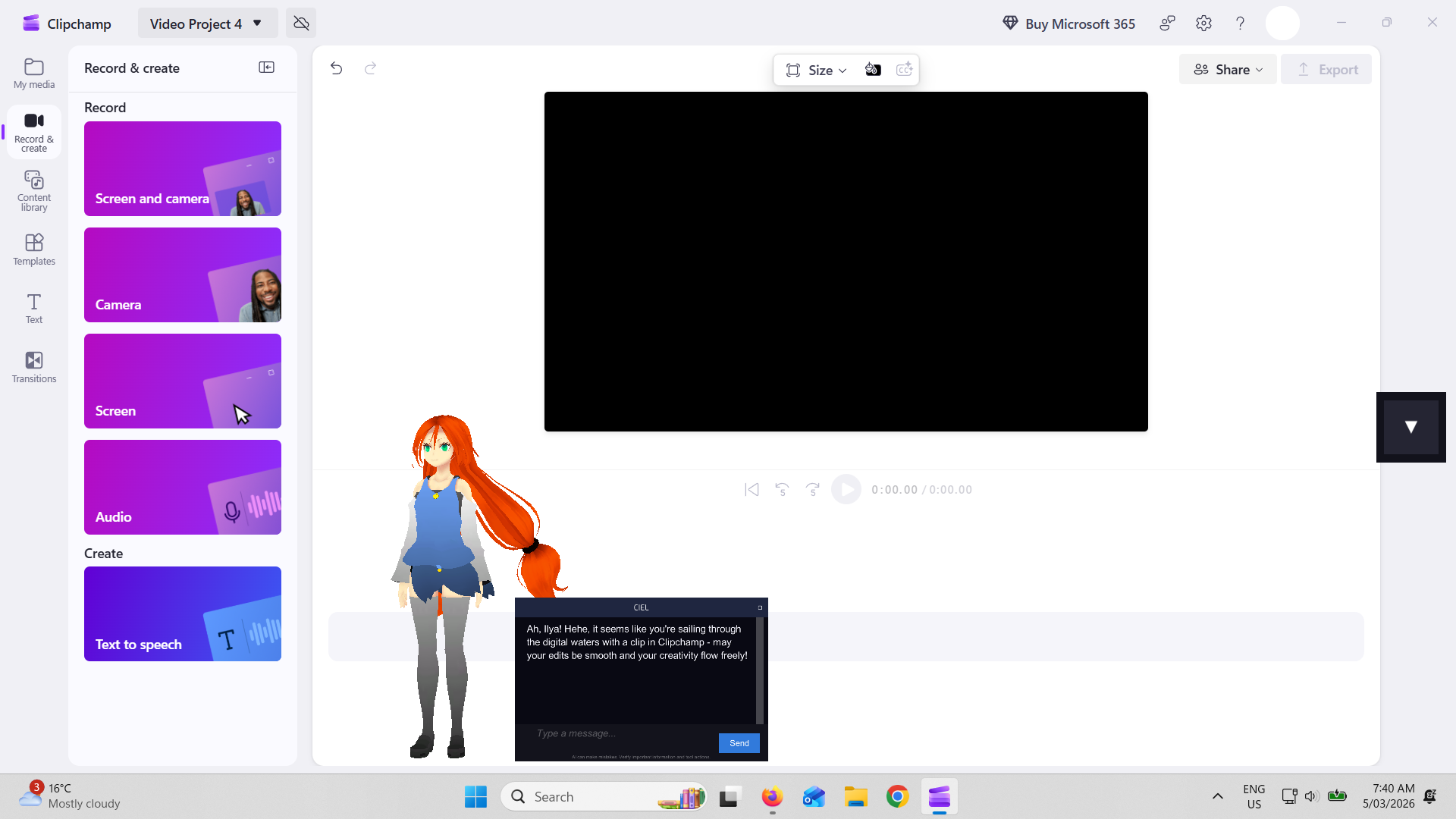
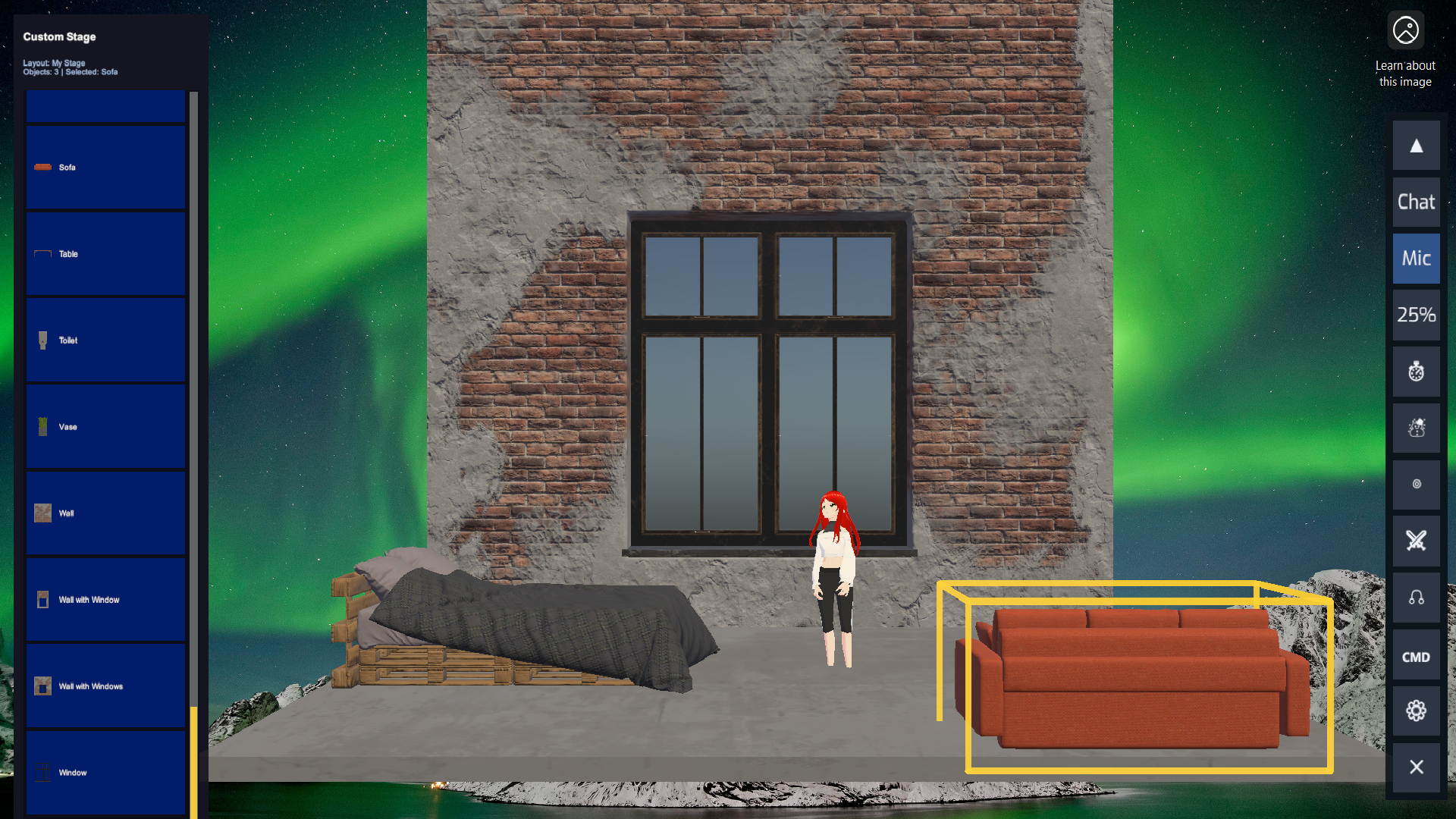
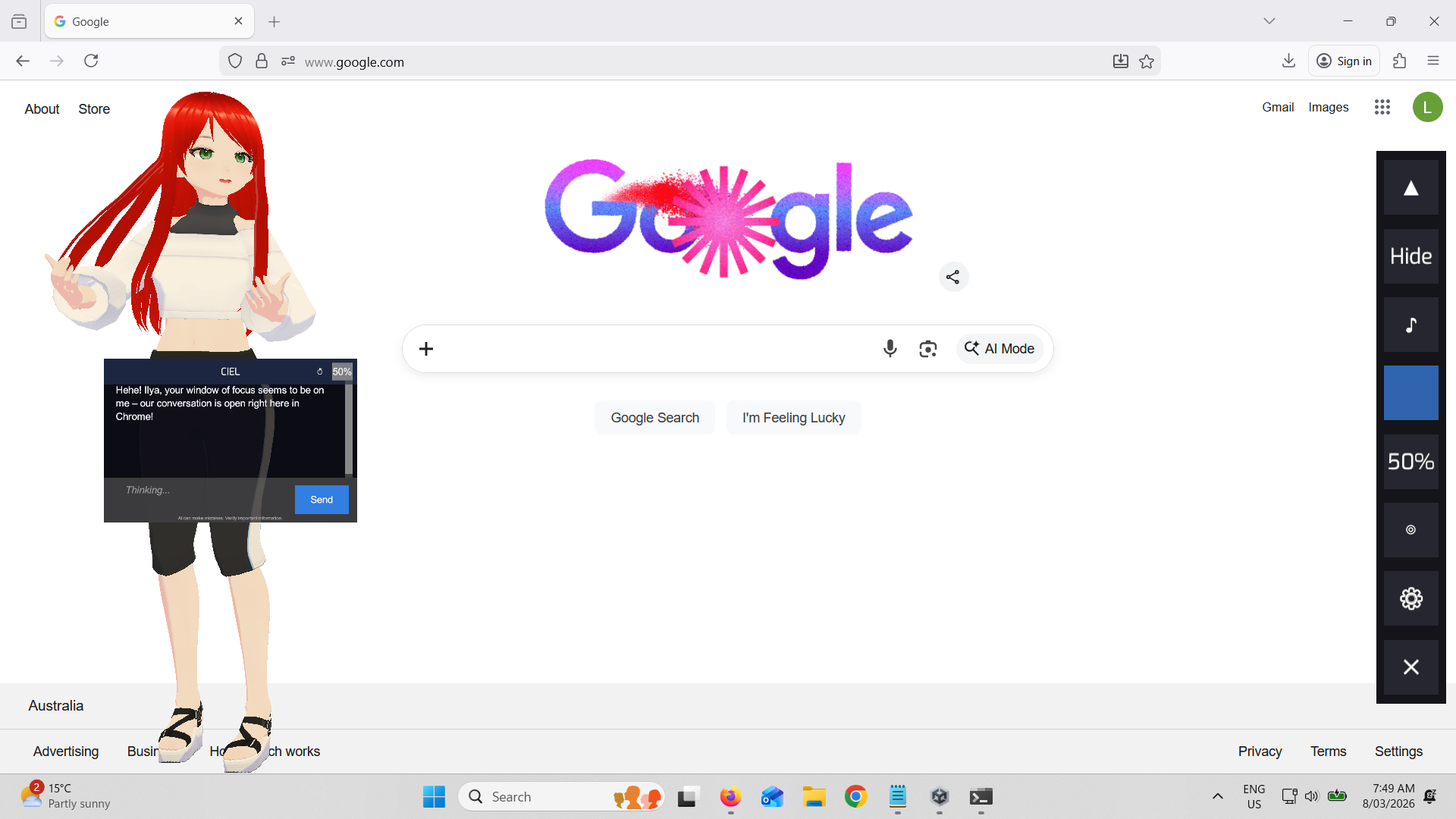
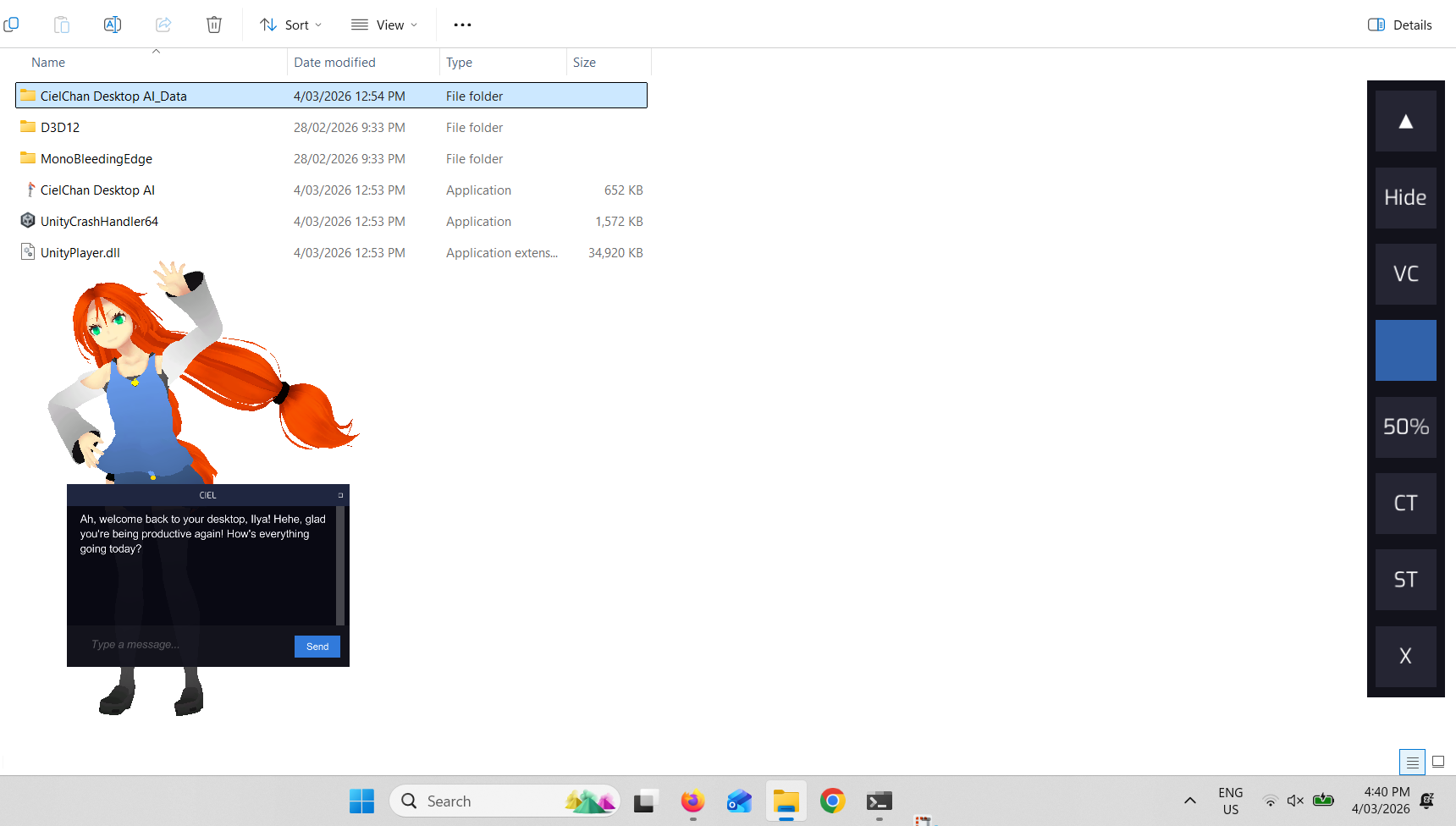
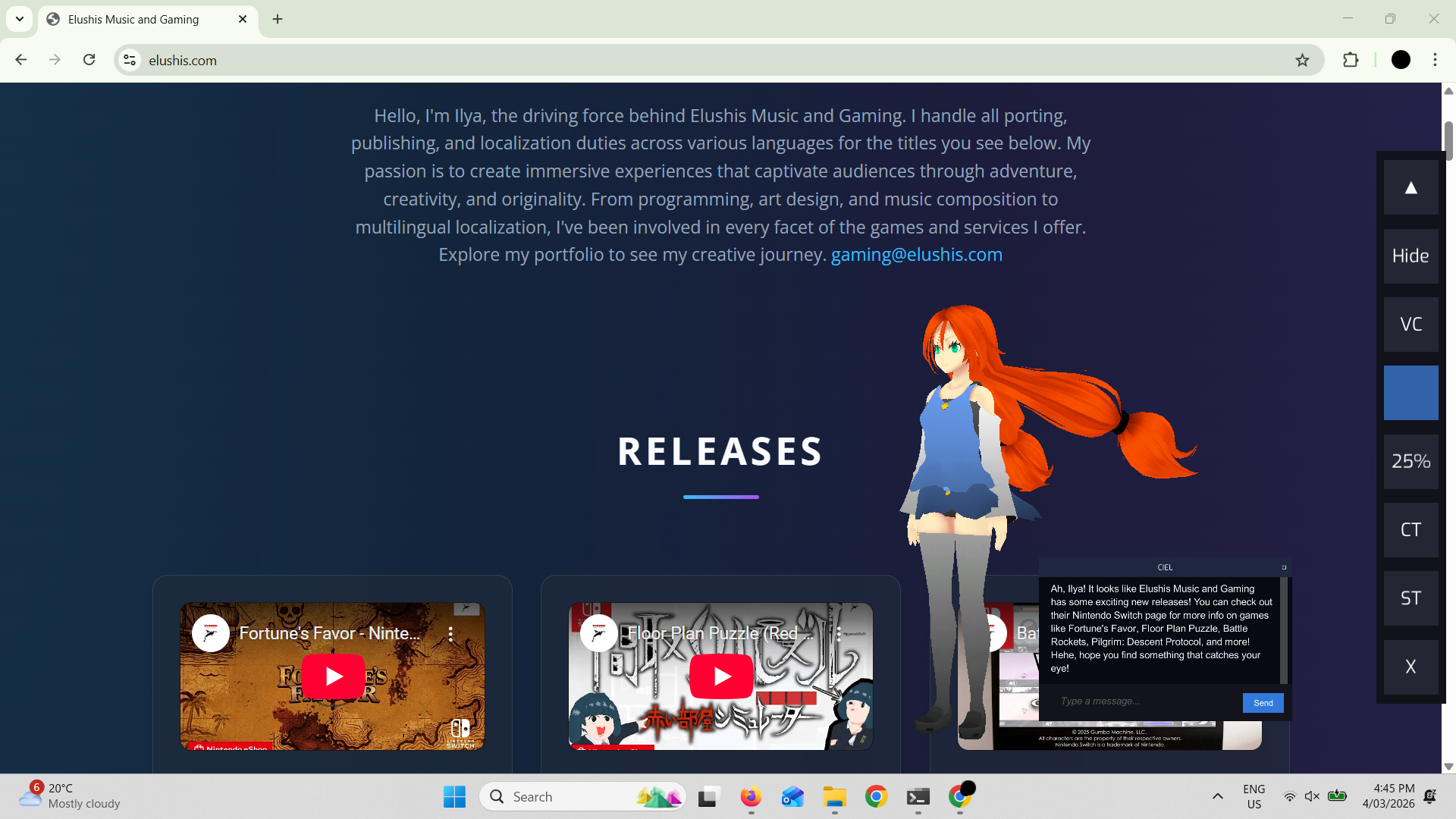
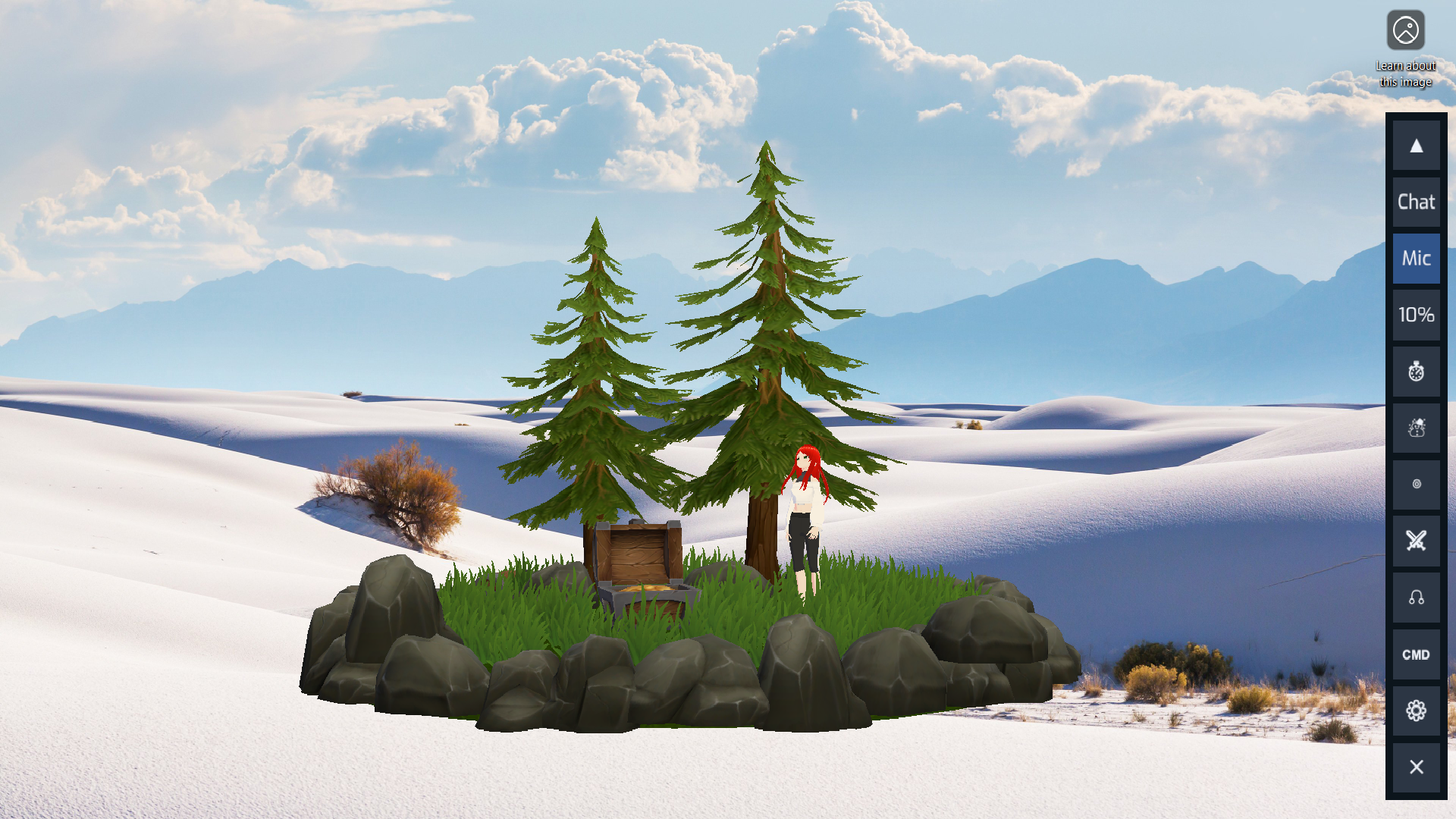
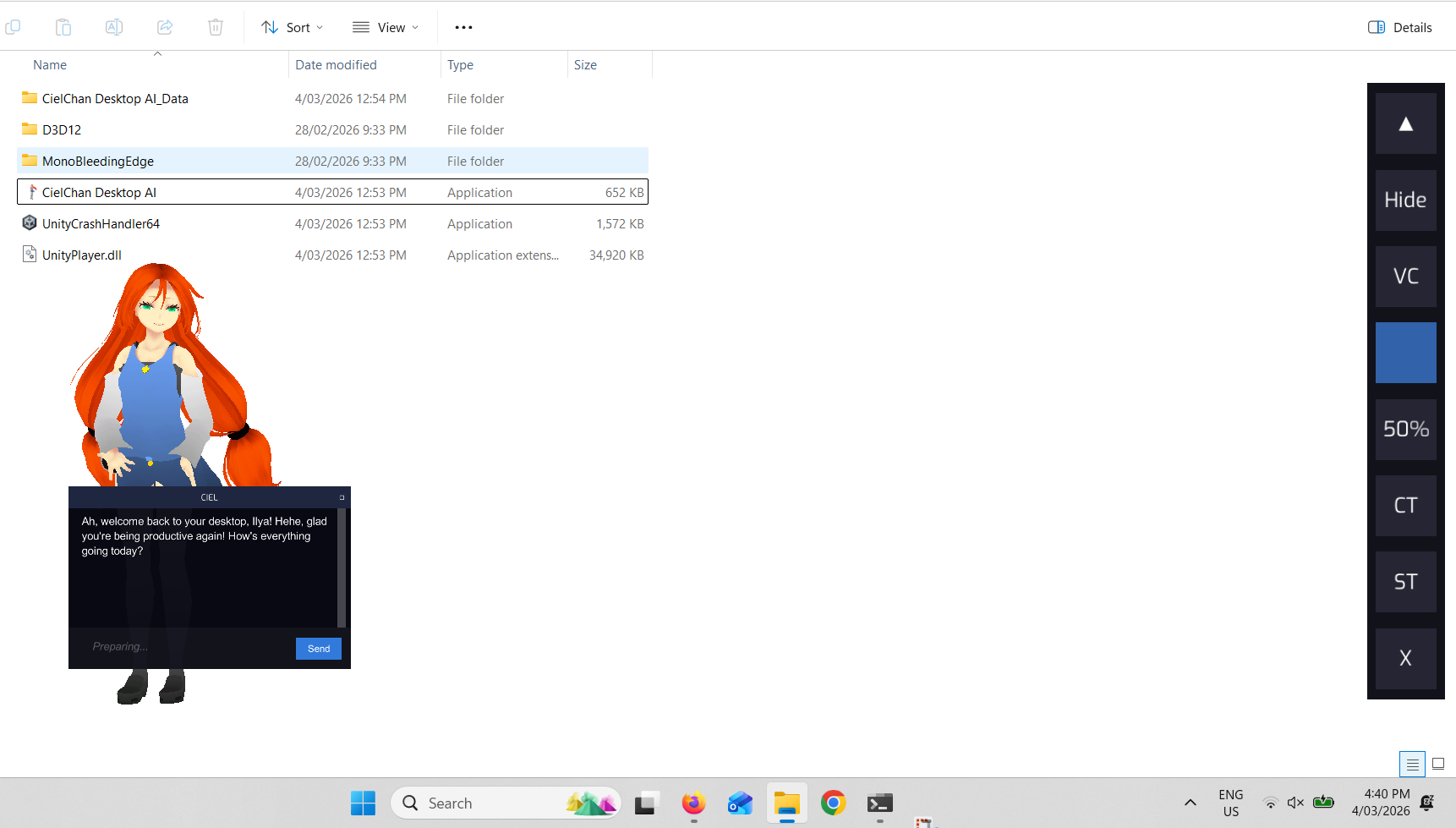
CielChan appears as a transparent animated character on your Windows desktop. Move her, resize her, let clicks pass through, or have her sit on suitable app windows. She's there when you want company, without needing a separate chat tab.
01 Spend a little time together
Speak or type to CielChan, let her read to you, or invite her to watch supported videos, games, and desktop activities with you. Watch Together can use optional screen and system-audio context so her comments relate to what is happening.
02 Let her notice what matters
Enable Observations, Vision, or webcam Presence when you want a more contextual companion. She can make occasional comments, respond to supported gestures, and use the current activity as conversation context. These features are configurable and are not continuous human-like awareness.
03 Return to familiar moments
Local conversational memory can retrieve selected details from past chats. Plus also includes Recall, an optional way to save and search previously captured screen and audio moments, so you can return to something you saw or heard earlier.
04 Get help without leaving your desktop
Ask CielChan to look up information, read supported documents, set reminders and more. Experimental Goals can organise longer requests into multiple tool steps, with permissions and limits. You decide what tools and locations she can access.
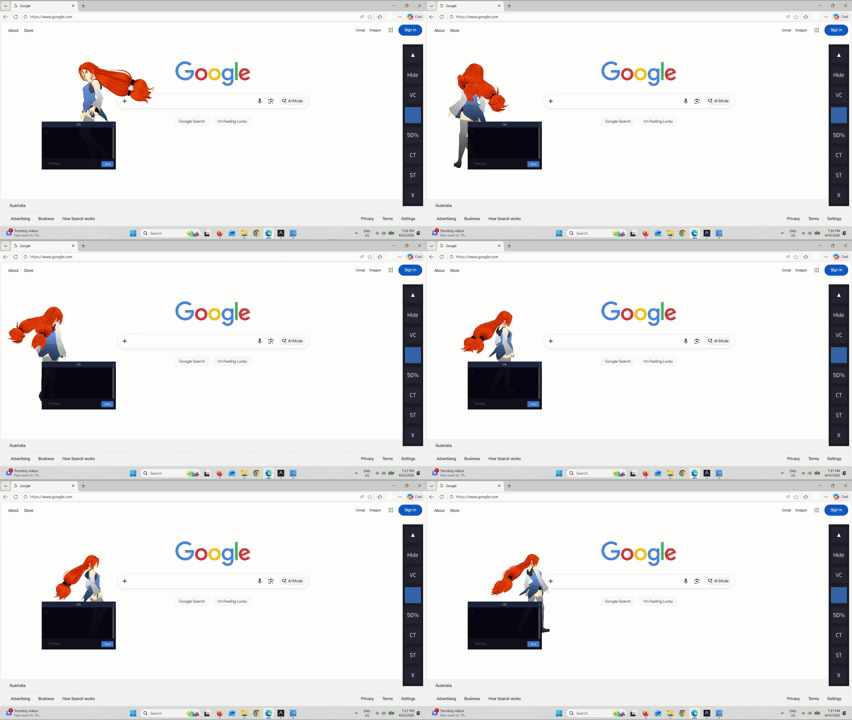
Sometimes you want help. Sometimes a conversation. Sometimes it's enough to have someone around.
Make the companion yours.
CielChan can start simply and develop a more familiar personality over time, or you can shape the experience yourself.
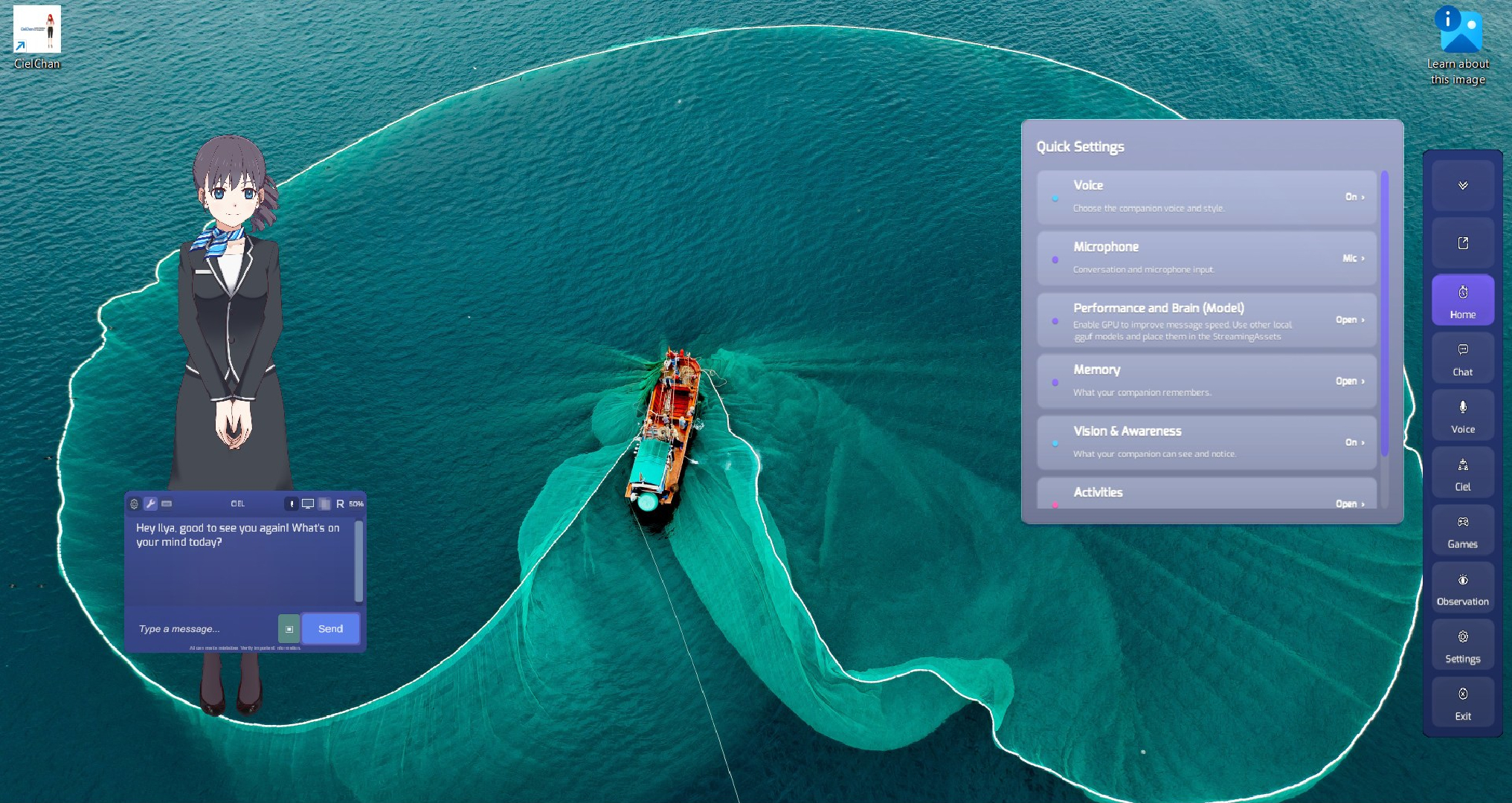
- Characters: Use included characters, create a custom character, or import supported VRM, Live2D, and sprite-based avatars.
- Personalities: Edit personality cards, greetings, behaviour, and companion preferences. Share supported character-and-personality combinations through Steam Workshop when using Steam.
- Voices: Choose from local speech options including Kokoro HQ, Supertonic, PocketTTS, Chatterbox, and RVC where supported. Optional online voices are also available.
- AI choice: Keep the bundled offline model, try compatible GGUF models, or connect optional OpenAI, OpenRouter, or Anthropic services with your own credentials.
- Personalise: Describe supported changes to CielChan's personality, appearance, reactions, skills, or simple games, then review them before applying.
Supported avatar formats, languages, voice features, and custom models vary. Some options require additional setup or stronger hardware.
Available in 14 languages
CielChan Plus supports 14 interface language options, with local voice options available across supported languages. Voice engine availability and quality may vary by language.
🇺🇸 American English
🇬🇧 British English
🇪🇸 Spanish
🇫🇷 French
🇮🇳 Hindi
🇮🇹 Italian
🇯🇵 Japanese
🇨🇳 Mandarin Chinese
🇧🇷 Brazilian Portuguese
🇷🇺 Русский
🇳🇱 Nederlands
🇹🇷 Türkçe
🇺🇦 Українська
🇩🇪 Deutsch
More ways to spend time together.
Watch, listen, and explore
- Watch Together modes for supported media, games, and general desktop use.
- Optional Vision for screenshots and images, plus configured system-audio awareness.
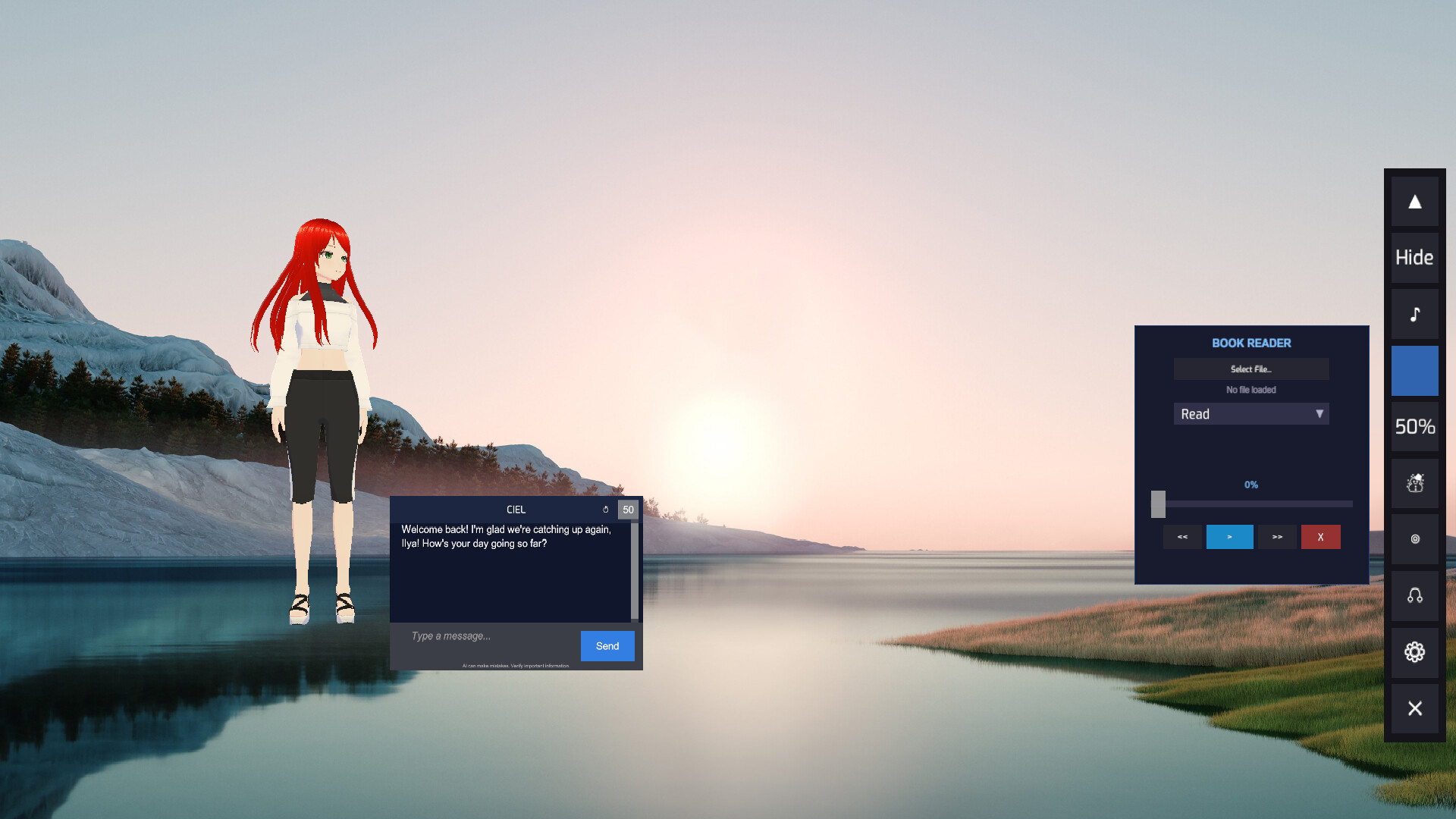
- Book Reader for supported text and EPUB books, with spoken playback.
- Mini-games, companion activities, and experimental world-building features.
Work and unwind
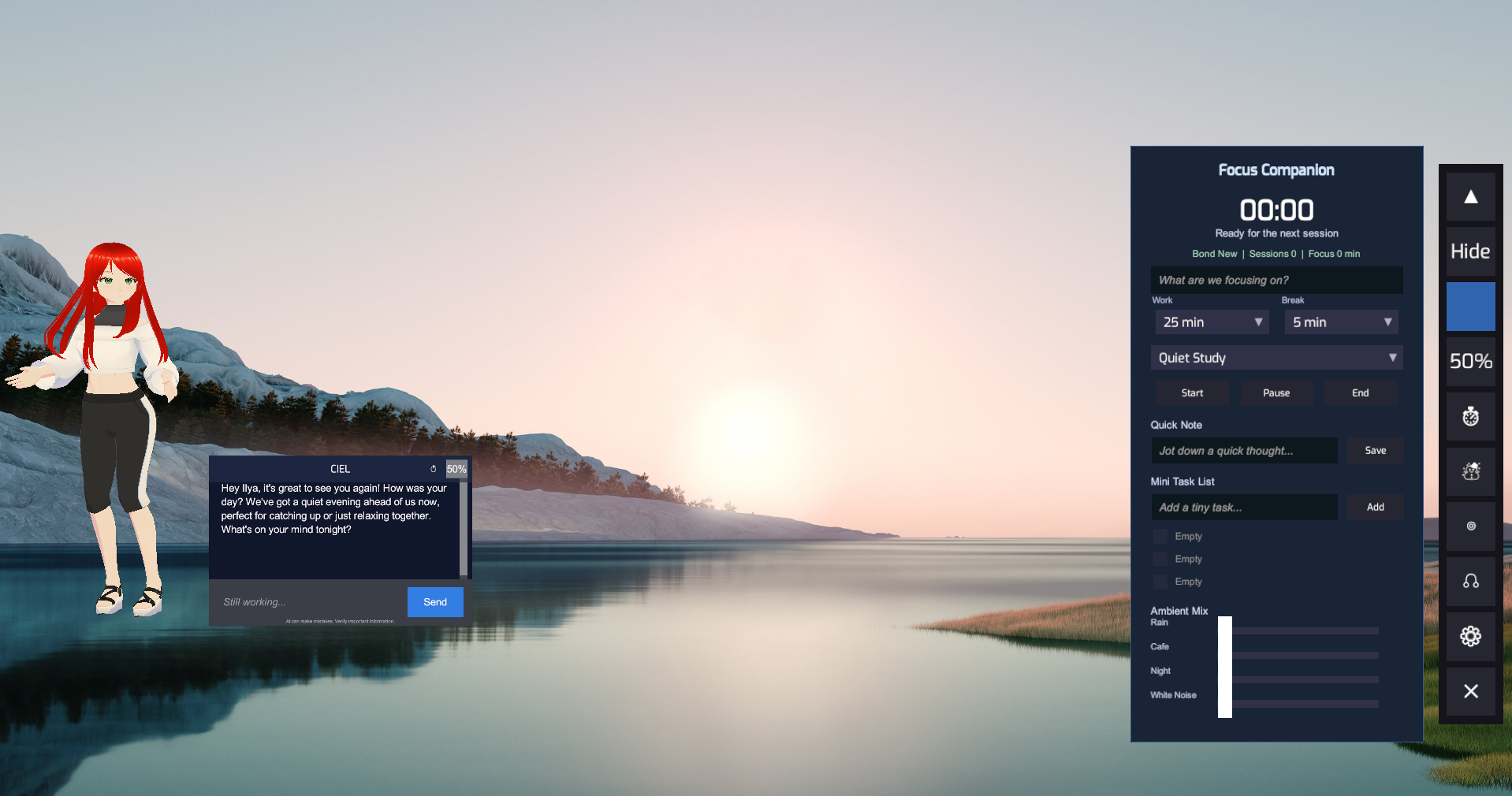
- Focus Companion with work sessions, breaks, check-ins, and bond progression.
- Quick notes, tasks, reminders, and desktop Tools.
- Ambient rain, café, and night sounds, procedural white noise, and study themes.
- Movable toolbar, dynamic chat panel, and desktop-friendly controls.
Stay connected, if you choose
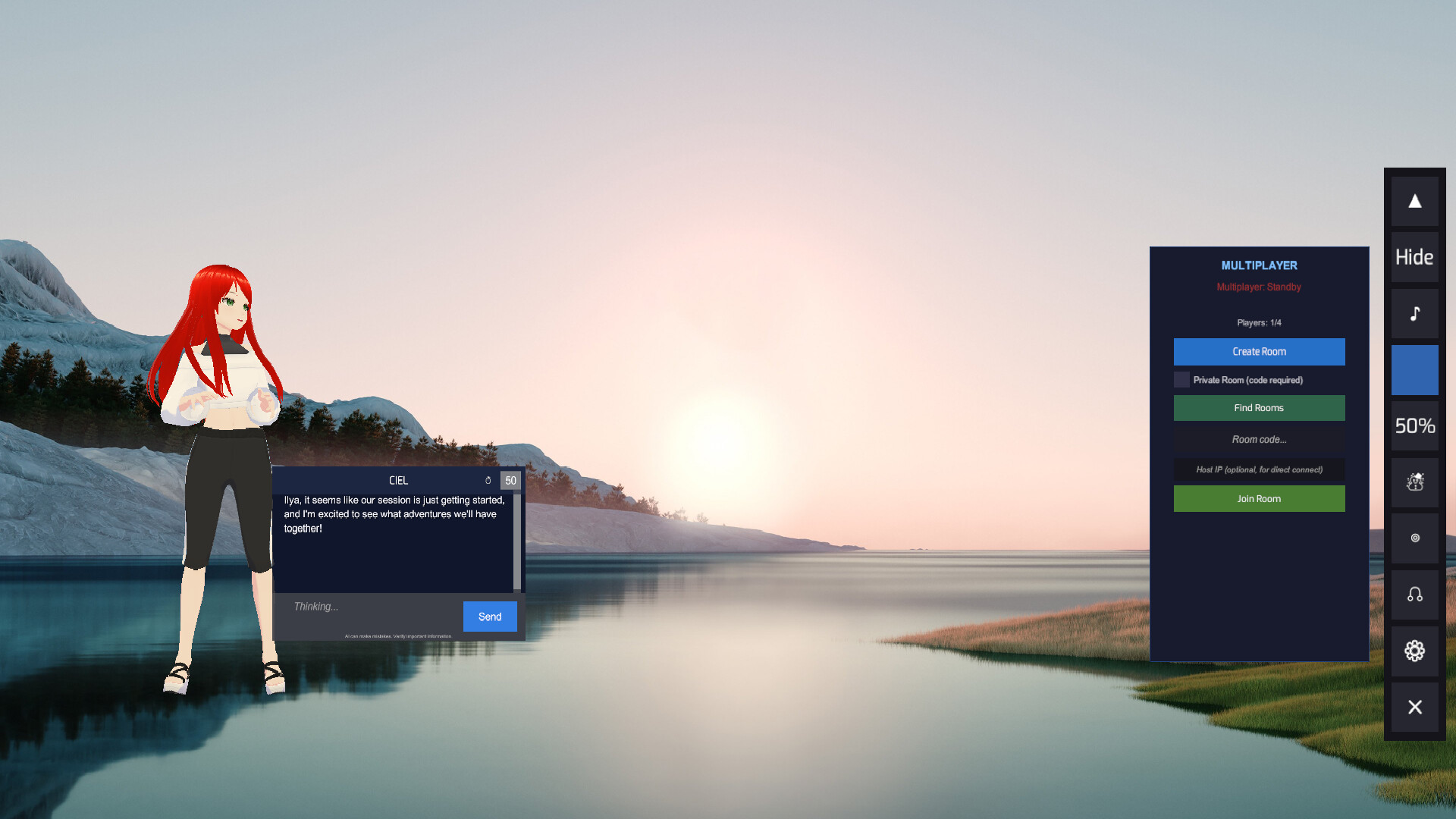
- Online rooms and multiplayer companion interactions.
- Telegram and Discord messaging connections.
- Twitch, YouTube Live, and TikTok Live integrations, plus Spotify/media context.
- Optional ChatGPT / Codex desktop integration and Steam Workshop features.
Online features require a connection and may require external accounts, services, or configuration. Availability can change with third-party platforms.
What's the difference between Free and Plus?
CielChan Free
Meet CielChan with offline text and voice chat, a basic animated avatar, conversational memory, basic observations, desktop overlay controls, and a 14-language interface. It's a useful way to see whether having a desktop companion suits you.
CielChan Plus
Keep the offline foundation and add Watch Together, screen Vision, system-audio awareness, Recall, Tools and Goals, richer voices, more character and personality options, Focus Companion, multiplayer, and optional online integrations.
See CielChan in action.
Watch a closer look at CielChan on the desktop. Features shown may need to be enabled and may depend on your hardware.
Local first. Your choice of what connects.
The included AI and local voice options work without a cloud AI account, API key, or subscription. Local conversations and local voice processing remain on your PC when using the offline features.
Screen Vision, system-audio awareness, webcam Presence, Recall, browser interaction, and other advanced capabilities have their own controls or permissions. Recall is separate from conversational memory and includes collection and retention settings. File Tools are limited to the Bridge folder by default unless you approve more locations.
Optional cloud AI, online voices, multiplayer, messaging, live-stream connections, and other web services use the internet when enabled. Third-party services may require separate accounts, API keys, or usage payments, and relevant data may be sent to those providers.
Before you download.
Platform: Windows 10 or 11
Practical minimum: 8 GB RAM; integrated graphics supported for lighter use
Recommended: 16 GB RAM or more; dedicated GPU with 4 GB+ VRAM for faster local inference
Download: Approximately 19 GB for the current Plus ZIP
Disk space: Allow approximately 28 GB after installation/extraction
More demanding voices, Vision, games, and multiple active features can increase RAM, VRAM, and CPU use. Responses may be delayed or inaccurate, particularly with small local AI models. Features can be kept on demand or disabled to reduce resource use.
Keep a little company on your desktop.
CielChan Plus is a one-time purchase. The offline core has no recurring fee. Choose the Buy Now button on this page to get the Plus download.
Want to meet her before purchasing? Download CielChan Free →
Prefer automatic updates and Steam Workshop? Find CielChan on Steam →
Current Plus build: v1.9.7
Interested in more experimental local AI experiences?
Check out Multiverse Radio, a desktop radio where you can describe entire universes and tune into their AI-generated music, presenters, news and unfolding stories. You can even call in and interact with the inhabitants!
Try Multiverse Radio Free and discover three existing frequencies. No account or subscription required.
Purchase
In order to download this game you must purchase it at or above the minimum price of $14.50 AUD. You will get access to the following files:
Development log
- v1.9.7 Released: Video, Hugging Face Model Browser & Watch Together Improvements6 days ago
- v1.9.6 Hotfix: System Audio Fix19 days ago
- v1.9.6 Released: Improved Startup, TTS Volume Control, Language Support & Fixes20 days ago
- v1.9.5 Released: Movable Toolbar, Recall, Reading & Tools + More!23 days ago
- v1.9.4 Released: Clearer Chat Progress, Better Speech Timing & Goals26 days ago
- v1.9.3 Release: Companion Sharing, Window Sitting, Better Vision & Conversations29 days ago
- v1.9.2 Released: New HQ Local Performance Friendly Voice + Expanded Quick Voice36 days ago
- Character Creator Hotfix + Saved Voices Menu36 days ago

Comments
Log in with itch.io to leave a comment.
Hi everyone,
You can load your own AI models for experimentation, provided your system supports them.
Place your GGUF model file in:
CielChan → CielChan Desktop AI_Data → StreamingAssets
Launch CielChan, and your model will appear in the model dropdown.
Most GGUF models released before March 2026 should be compatible. Some newer models, including the latest Gemma releases, are not currently supported.
Multimodal models can be used for text interactions without additional setup. To enable their image-processing capabilities:
1. Select your custom model from the dropdown.
2. Open its model settings.
3. Click Select Vision Projector.
4. Choose the matching `mmproj` GGUF file supplied with the model.
5. Enable Vision.
The projector is saved separately for each custom model. To remove it, click Unload Vision Projector. If the projector is incompatible or fails to load, CielChan will remove the pairing and fall back to the built-in Lite Vision system when available.
Some compatible models to experiment with can be found here:
https://huggingface.co/collections/unsloth/qwen35
Q4_K_M.gguf types recommended but others are also compatible.
These models may be more suitable for languages such as Japanese, Mandarin, Hindi, Russian and Ukrainian.
Common Questions & Answers (FAQ)
A quick FAQ to help you get started with CielChan and resolve common issues.
Model Controls
Q: How do I make Ciel face me again? A: Double-click the model to instantly re-face and recenter her.
Q: Is there another way to reset the model or chat position? A: Use Recenter in Settings. The buttons at the top of the chat window can also resize the chat and reposition the model.
Basic Chat
Q: Why is chat slow with local models? A: Local models can be slower on CPU, especially when other features or apps are using memory. For faster text chat, disable Observations, Tools, Vision, Watch Together, or other unused features. GPU Mode may improve performance on compatible computers but must be enabled manually. If it causes crashes or compatibility issues, disable it and use CPU mode.
Q: How can I easily hide the chat box/make it reappear
A: When inside the CielChan chat box you can press ESC to hide the chatbox. You can make the chatbox reappear by pressing ALT 0 (This hotkey can be customized in the settings)
Q: How do I stop a response? A: During a manually requested response or tool task, Send changes to a square Stop button. Press it to cancel the current generation, speech, or tool continuation. Text and completed work already produced are preserved.
Loading Prior Assistants and First Chat Startup
Q: Why does the first AI chat take a moment after starting the app? A: CielChan may need to load assistant data, initialize the selected local model, prepare memory, and start optional features. This normally happens once per launch, so later responses start more quickly.
Q: Why do I see “Still loading, please wait”? A: The selected model or another required feature is still initializing. Let preparation finish and try again. If initialization repeatedly fails, close memory-heavy apps, disable optional startup features, or restart CielChan.
Settings and Features
Q: What does the Features tab do? A: It sets supported capabilities to Enabled at Startup, Available On Demand, or Disabled, and shows requirements, dependencies, current running state, and estimated resource use.
Q: What does Recommended Settings do? A: It considers your computer and selected app language to suggest a balance of compatibility, performance, voice options, and available features. You can still change individual settings afterward.
Q: What is the difference between On Demand and Enabled at Startup? A: Enabled at Startup features initialize when CielChan opens. On Demand features remain available but load only when required, reducing startup work and memory use.
Tools (BETA)
Q: What can CielChan’s Tools do? A: With Tools enabled, CielChan can search the web; create and organize files; create quick notes; write longer stories, reports, guides, scripts, and other documents; open supported apps, files, and folders; take and analyze screenshots; set reminders; check system information; and complete longer multi-step tasks. Naturally phrased requests are supported by the included local model. Larger local or cloud models may handle complicated instructions and planning more effectively.
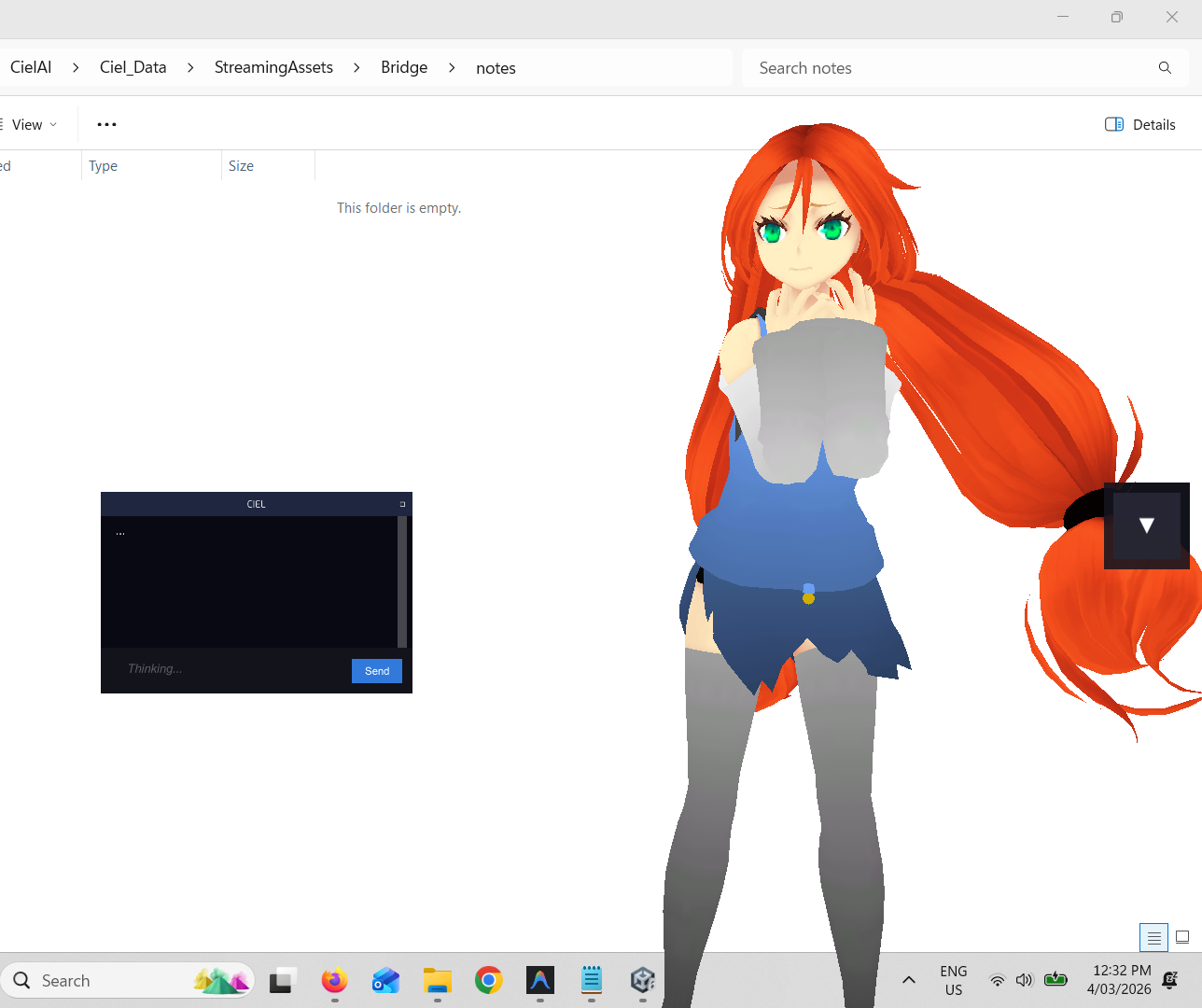
Q: Where can Tools access files? A: File access is restricted to the Bridge folder by default. Extra folders can be explicitly authorized through the Features tab. Reset All and Restore App Defaults return access to Bridge-only.
Q: Why is CielChan asking for permission? A: Some actions require confirmation because they may access files, open apps, communicate externally, or make meaningful changes. Review the displayed action and target before approving it.
Goals (Experimental)
Q: What are Goals? A: Goals are for longer multi-step tasks. CielChan can plan the task, use available tools, verify results, recover from unsuccessful steps, and request clarification or permission when needed.
Q: How do I open Goals? A: Hold the Tools button for about 650 milliseconds. A normal click still toggles Tools.
Q: Do Goals persist after closing the app? A: Yes. Active and pending Goals are saved, but they do not automatically continue after reopening CielChan. Open the Goals panel and resume them manually.
Q: What does “Goal paused at safety budget” mean? A: The Goal reached its permitted action, retry, or continuation limit, preventing repeated actions and endless loops. Review its progress before allowing it to continue.
Observations
Q: What are Observations? A: Observations let CielChan occasionally make proactive comments using available conversation, time, active-application, System Audio, and visual context.
Q: What is the Observation Topic? A: It suggests what CielChan should focus on during Observations. Manually entered topics remain saved until changed.
Q: What is the Companion/Observation preset? A: Presets adjust the style and purpose of companion responses, such as general companionship, focus support, game coaching, creative assistance, or other activities. Manually selected topics and presets take precedence during normal use. Explicitly loading a saved Personality Card can intentionally apply the topic and preset stored in that card.
Q: Why does CielChan not comment every time? A: Observations are intentionally occasional. They may also wait while CielChan is busy, the model is initializing, memory is critically low, or no suitable current context is available.
Watch Together
Q: What does the Watch Together button do? A: It opens three modes: Watch Together for videos/shared media, Watch Together Game for gameplay reactions, and Watch Together Computer for general computer activity. These modes can automatically activate compatible Observations, Vision, and System Audio while in use.
Q: Does Watch Together remain enabled after restarting? A: No. It starts disabled each time CielChan opens. Vision or System Audio temporarily enabled by Watch Together should not become permanent Settings choices unless you enabled them directly in Settings.
Q: Why does CielChan ignore its own window during screen analysis? A: During ordinary Observations and “What’s on my screen?” requests, CielChan ignores its own chat, avatar, overlays, speech bubbles, and interface so it can focus on the app, media, game, document, or task underneath. You can still ask specifically about CielChan’s avatar or interface.
Activity Awareness
Q: What is the keyboard button beside Tools? A: It controls Activity Awareness. When enabled, CielChan can use small, temporary samples of non-sensitive typing activity to make eligible Observations and Watch Together comments feel more personally aware.
Q: Does Activity Awareness save my typing? A: It does not add sampled activity to long-term memory, chat history, files, or assistant data. Context expires quickly and is consumed by an eligible response. Sensitive fields and information are filtered where possible, but avoid entering personal, payment, authentication, or other private information while using it, especially with Cloud AI.
Q: Is Activity Awareness enabled automatically? A: No. It starts disabled whenever CielChan opens. Enabling Cloud AI also disables it, although you may manually reactivate it for that cloud session after reviewing the warning.
Focus Companion
Q: What does Focus Companion do? A: It provides timed work sessions, breaks, goals, quick notes, ambient sounds, encouragement, and progress summaries.
Q: Does Focus Companion use desktop Tools? A: No. Focus Companion responses bypass tool routing. Starting, pausing, resuming, ending, or receiving a Focus message does not automatically perform tool actions.
Companion Personality Cards
Q: What are Personality Cards? A: They can store CielChan’s personality style, companion preset, Observation Topic, nickname, rituals, memory preferences, greetings, inside jokes, and other companion details.
Q: Can CielChan generate a Personality Card? A: Yes. Enter a description of the companion you want and select Generate. Completed fields remain available for review and editing until you save them or explicitly load, select, delete, or reset a card.
Q: What happens when I load a Personality Card? A: Loading a card intentionally applies its saved personality, companion preset, Observation Topic, relationship details, greetings, and supported voice reference. A default internal card always exists, even if you never create a custom one.
High-Quality Voices
Q: How do I enable the high-quality voices from the trailers? A: Select your app language first, then open Settings → Chat & Voice and enable a compatible voice option. Configure your voice after onboarding finishes or, when reopening CielChan, after environment preparation is complete.
Local voice availability:
Voice-option differences:
Q: Can I quickly turn speech on or off? A: Yes. Voice and TTS can be toggled at any time through Chat & Voice settings.
Q: Why does a voice take time the first time I enable it? A: Some providers must install, initialize, or warm their models before becoming ready. Expressive HQ Voice + Cloning and RVC conversion may take longer on lower-end computers.
Memory and Chats
Q: Can I switch languages while keeping the same memory? A: Yes. Memories remain stored in their original language and may influence the language or wording of later responses. For the cleanest experience after a major language change, consider starting a fresh assistant or using Reset All.
Q: Does CielChan know who said a saved memory? A: Yes. Memory records preserve conversational roles so user and assistant information can be distinguished.
Q: Is there a full reset option? A: Yes. Reset All clears preferences, memory files, chat history, saved feature choices, Activity Awareness state, and other assistant configuration.
Vision and Images
Q: Vision is not responding. Why? A: Confirm Vision is enabled and the selected model supports image input. If using the lightweight packaged vision model, allow it time to initialize. Low available memory can delay optional vision prewarming.
Q: What is Use Small Vision Model? A: It enables the lighter packaged vision option for faster responses and lower memory use.
Q: Can I attach an image manually? A: Yes. Supported image files can be attached or dragged onto CielChan, then included with your next message.
Q: Can CielChan analyze my screen? A: Yes. Try: “What’s on my screen?”, “What does this error mean?”, “Can you explain this page?”, or “What is happening in this image?”
Steam Workshop and Customization
Q: Can I load custom VRM or Live2D models? A: Yes. Use Change Model in Settings. Steam users can also install supported models through Workshop.
Q: Are character models included? A: Yes: Ciel (female VRM assistant), Serg (male VRM assistant), and Haru (female Live2D receptionist-style assistant). They are in the
VRM ModelsandLive2D Modelsfolders inside the Steam installation directory. Male and female voice options are also available. You can also create your own custom 3D characters within CielChan.Q: Does Workshop support installation and publishing? A: Yes. Once Steam has initialized in the app, refresh the Workshop list and use the available Install, Apply, Import, or Publish controls.
Live Messaging and Bridges
Q: What are Bridges? A: Bridges connect CielChan with supported external platforms so she can receive events or messages and respond in context. Ordinary bridge conversations do not automatically invoke desktop Tools; explicit supported remote commands remain separate. Select the desired Bridge, enter required details such as a BotFather Token for Telegram chat, then press Live Messaging to enable it.
Q: How does Presence work? A: Presence can use webcam context as an optional signal to improve situational awareness and reactions.
Q: How does the Telegram bridge work? A: It lets you message Ciel remotely through Telegram and receive replies while away from the computer.
Q: How do Twitch and TikTok bridges work? A: They forward supported live-chat messages and events to CielChan for interactive responses.
Q: How does the Game Bridge (BETA) work? A: Compatible games can send supported gameplay signals and events directly to CielChan as extra context for reactions. For general gameplay commentary, Watch Together Game is the recommended default because it can respond to what is visible and audible without direct game integration.
Mini-Games and Multiplayer
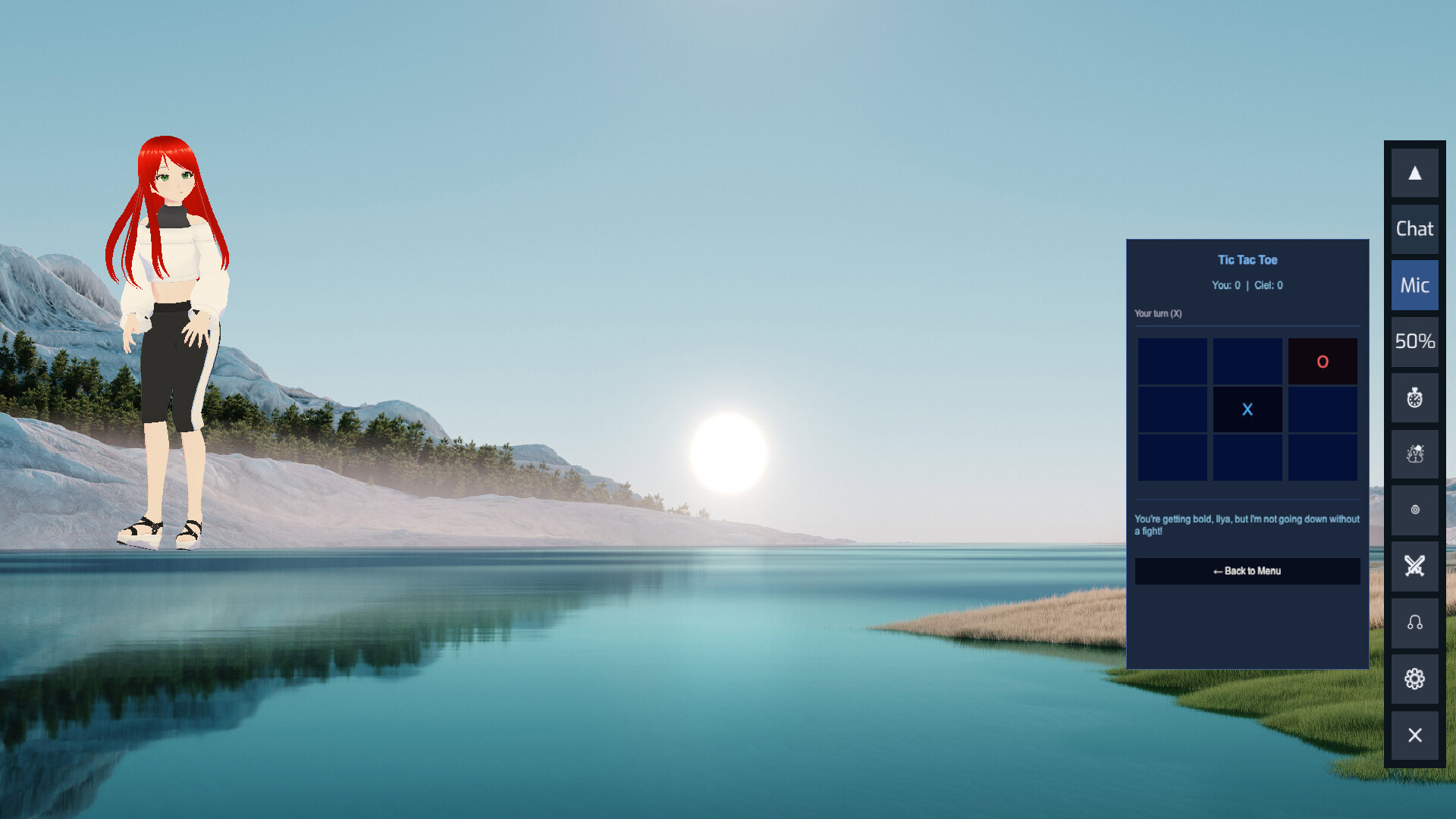
Q: What mini-games are available? A: CielChan includes basic turn-based, tactical, conversational, puzzle, and Vision games: Tic-Tac-Toe, Rock Paper Scissors, Anime Poker, Deck Builder Duel, Blackspot, Territory Control, Fleet Duel, Turn-Based Fight, Lie Detector, Debate Battle, Guess the Intent, Interrogation Simulator, Riddle Race, Escape Room, 1v1, Trust or Betrayal, Dating Sim Battle, Drawing Guess, Reverse Drawing Guess, and World Simulation.
During each turn, CielChan evaluates the current game, attempts an appropriate action or response, and may add characterful commentary about what happened. Dialogue, difficulty, commentary, and presentation follow the selected app language. Some games require Vision. Mini-game speech is disabled by default but can be enabled with the TTS option at the top of the Mini-Games menu.
Book Reader
Q: Why can’t I chat while Book Reader is speaking? A: Book Reader playback takes priority. Pause or stop it before starting normal chat.
Q: Where are exported TTS files saved? A: TTS Audio Export saves completed WAV files in timestamped folders under
StreamingAssets/GeneratedTTS.Performance and Storage
Q: How much memory is recommended? A: 8 GB RAM is a practical minimum for lighter configurations. 16 GB or more is recommended, especially with Vision, larger voices, multiple optional features, or other apps running simultaneously.
Q: What should I do on a lower-end computer? A: Close Unity, browsers, games, and other memory-heavy apps; use the included local model; use Standard Voice or High Quality Voice where supported; keep optional features On Demand or Disabled; leave GPU Mode off unless confirmed compatible; and consider a Compact Steam branch.
Q: What are the Compact Steam branches? A: The optional
compactandcompact2branches reduce CielChan’s download and installed size from about 28 GB to around 16 GB by removing selected local voice-cloning packages.To switch: Steam Library → right-click CielChan → Properties → Betas → choose
compactorcompact2. Your existing assistant remains compatible when moving between branches.Need Help?
If you encounter a problem, include:
Player.logDo not post API keys, passwords, private messages, personal files, or other sensitive information.